P.
 Posts
Contact Me
Posts
Contact Me
Posts
Contact Me
Posts
Contact Me
7/13/2025
It's not complicated, but it is.
I recently decided to upgrade my home network security.
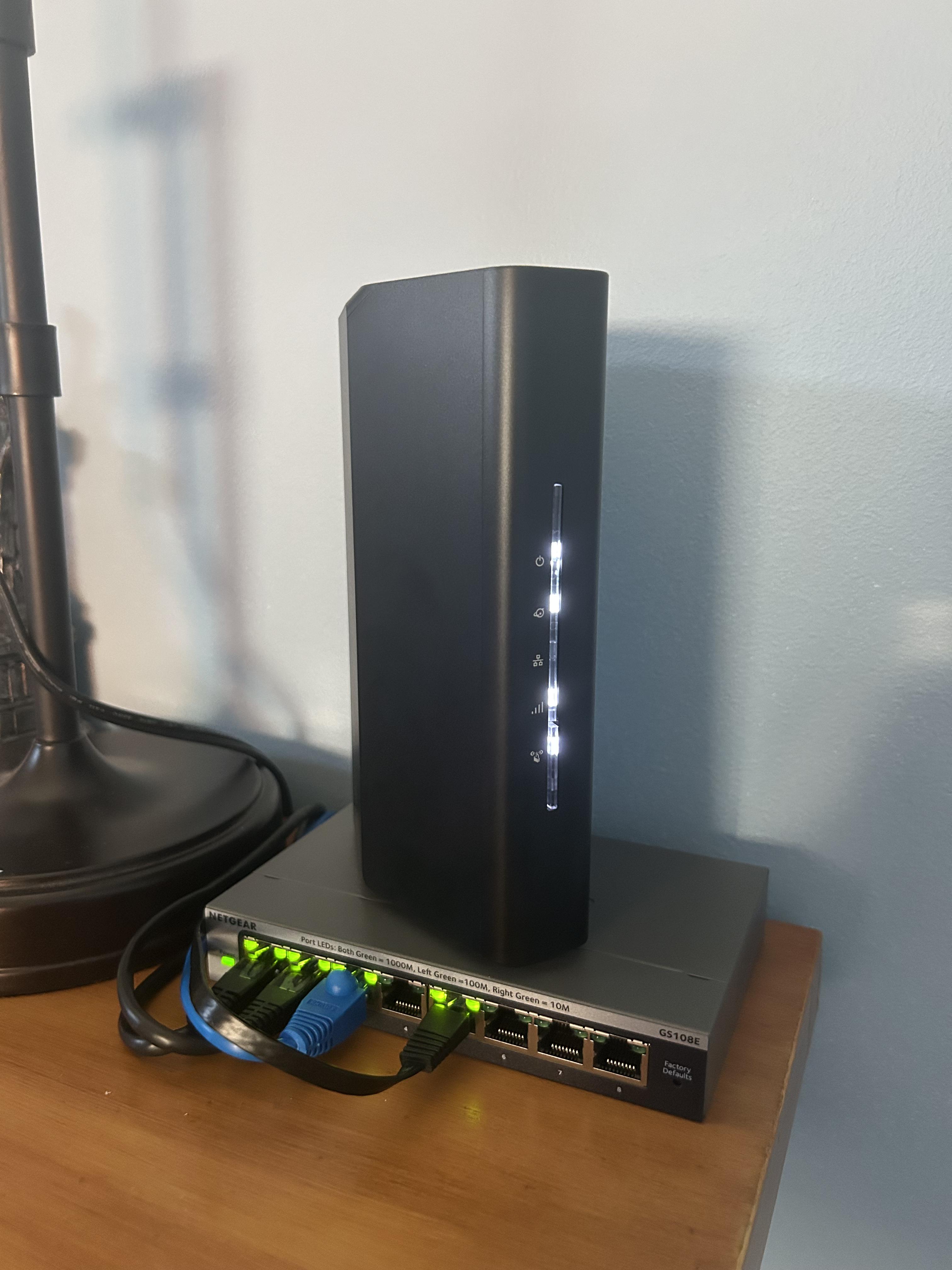
I had a project in mind where I wanted to utilize Wazuh in my homelab. Wazuh is a Security Information and Event Management (SIEM) and eXtended Detection Response (XDR) tool. If something is running off of an operating system (PC, VM, container, etc), you can install an agent onto it and Wazuh can monitor the system for vulnerabilities and provide information on how to properly remediate any issues.
This sounded like an awesome learning opportunity. I could have hands-on experience with patching, knowledgebases, real-time threat protection, and much more. All I had to do was just install some agents onto the machines I want monitored, and I am good to go.
...except, it was not that easy. Due to how my network was initially setup, my server was on my main modem's subnet, while my exposed services were on a completely different subnet where it could not be accessible. Basically, it was impossible to monitor some machines due to poor design.
You might've looked at that last string of text above and wonder "What does any of that mean?" and that's okay. I am going to have to explain this no matter how hard I try to simplify it. There are some cans, and those cans have a lot of worms in it, so bear with me.
No, seriously. Bear with me. This is a long one.
Here is a visual to better understand what my home network looked like before:
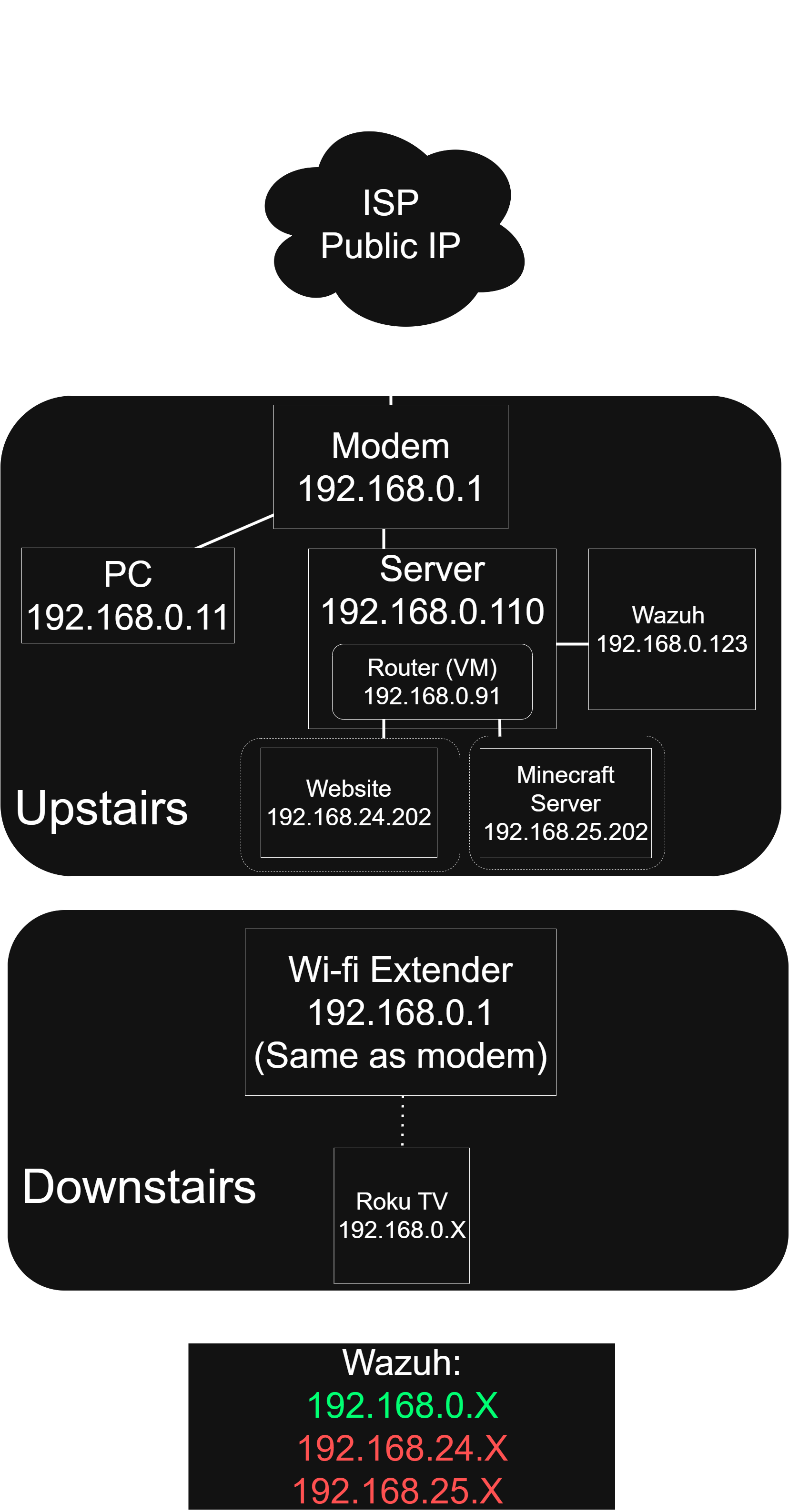
A standard modem is what connects to your Internet Service Provider (ISP) who has your public Internet Protocol (IP) address. If a network is properly configured, everything is routed back to the modem.
A router manages your Local Area Network (LAN) and translates a private IP to the public one through the modem. The IP translation process is known as Network Address Translation (NAT).
Why do we use NAT? Well, many moons ago when the internet was first being developed, it was decided that computers connected to the internet would be identified via a 32 bit address. This system is known as IPv4, and it can offer roughly 4 billion possible IPs. This sounds good, but again, this was when the internet was first being developed. Computers were something new, something that were in one in a few households and college campuses. Not everyone had one.
Before I continue with the history lesson, here is what an IPv4 address looks like in binary:
11000000.10101000.00000001.00000001
Hard to read, right? Well, this can be written in base 10, making it easier for us mere humans to read. Each bit in binary represent a power of two, so if there is a 1 in the first octet, it would be 2^7. The second bit is also on, so it would be 2^6. The rest of the bits are off, so they would be 2^0. Add up the numbers 2^7 and 2^6 (128 + 64), and the number in the first octet would be 192. Repeat this process for the other three octets, and the number reads 192.168.0.11.
The highest number that can be within an octet is 255. If all of the bits are on, they add up to 256, but since we start counting with 0, we use 255. 192.168.266.51 is not a real IP address because there is no way that 266 could be added together with 8 bits.
Going back to the idea of when the internet was first being developed, think about how many devices you have in your home that are capable of connecting to the internet. There's probably a toaster that could do it if you looked hard enough. Not only did computers become more widespread, but there are twice as many people as there are IPv4 addresses. And that statement isn't even completely true- since certain IPs are reserved for experimental purposes and some ranges are used for private IPs now, it's closer to 3.7 billion possible public IPv4 addresses. How do all of your devices get an internet connection? It's NAT. NAT has helped us with the exhaustion of public IPv4 addresses (although some regions of the world are completely exhausted and have to use a different IP system, IPv6. That will not be discussed).
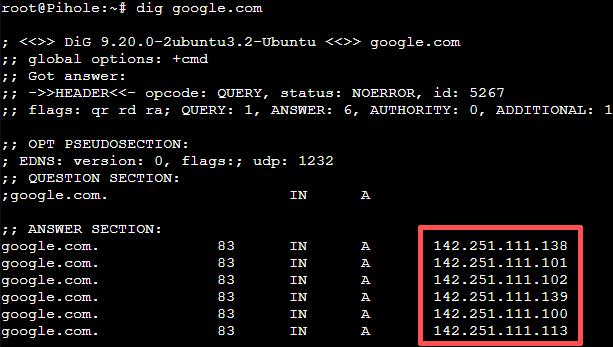
I mentioned "private IP" addresses. These are IPs that can only be used within a LAN. You know those pretty names that you can use to search up websites? Google.com? Amazon.com? Wikipedia.com? They are mapped to a public IP address, or multiple ones.
Here is an example of how many public IPs are mapped to Google.com:
And here is the range of private IP addresses:
10.0.0.0 - 10.255.255.255
172.16.0.0 - 172.31.255.255
192.168.0.0 - 192.168.255.255
Those addresses above could never be mapped to a public domain. You will never see a website like google.com be mapped to 192.168.0.11, or 172.16.127.15. These private IPs are reserved for devices within a LAN, before they get translated to a public IP by the router through NAT, which is sent through the modem to the internet.
Have I digressed enough about NAT? I think I have. One more thing until I can finally move on with to what I actually did: subnets.
Subnets divide networks into smaller, more organized sections. They can help with reducing network congestion and isolation. We use what is called a subnet mask to identify how many IPs could be used within a subnet.
A common subnet mask is 255.255.255.0, and since the last octet has 8 bits left over, that's 256 possible combinations (2^8). You take that number and subtract it by two (I will not digress why; if you are curious, feel free to look it up), and that's 254 possible hosts that could be within that subnet. The smaller the subnet mask, the more hosts that could be within a subnet, and vice versa.
...okay! I think I can proceed on what I did! And don't worry! I will be explaining even more things that you may or may not understand!
Let's take a closer look at the router setup:
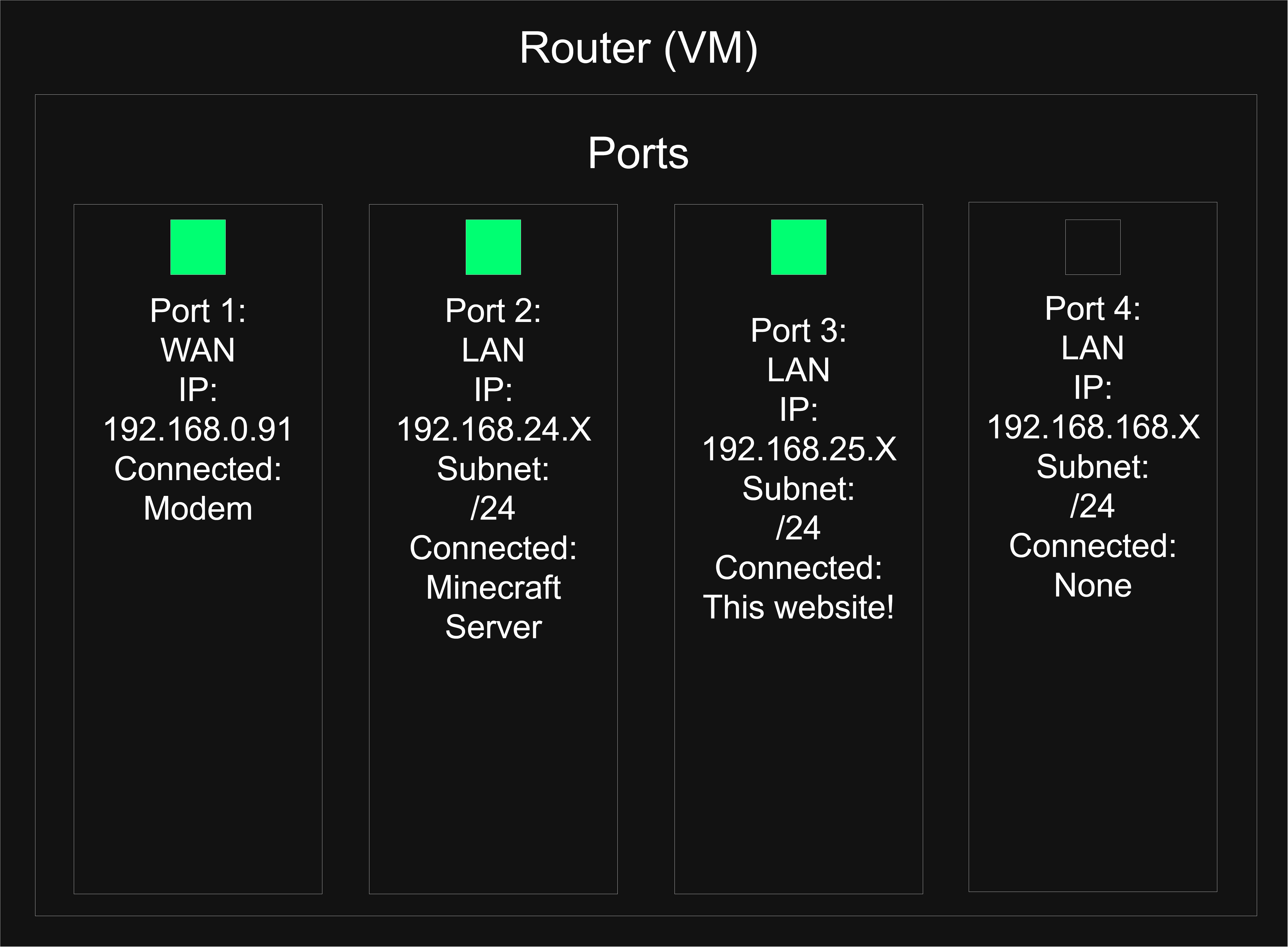
To clarify, the main router that I have used for this project is a pfSense router, which is virtualized onto my server. This allows me setup VLANs and firewall rules, which will be explained later.
The first port on the router is the WAN port, which upstreams to the modem. You might notice that it is not a public IP even though a router is supposed to take LAN IP and translate it to the a WAN one, which is typically public. This was due to my modem acting in router mode. The way I initially described a modem is true, but some modems try to have a 2-1 feature where it could also act as a router, so there was actually double NATing going on. So, the WAN IP on the router was actually a static LAN port that was on the modem's subnet (static meaning it doesn't change). It was a little yucky. Here's a little flow chart to understand how the double NATing worked:
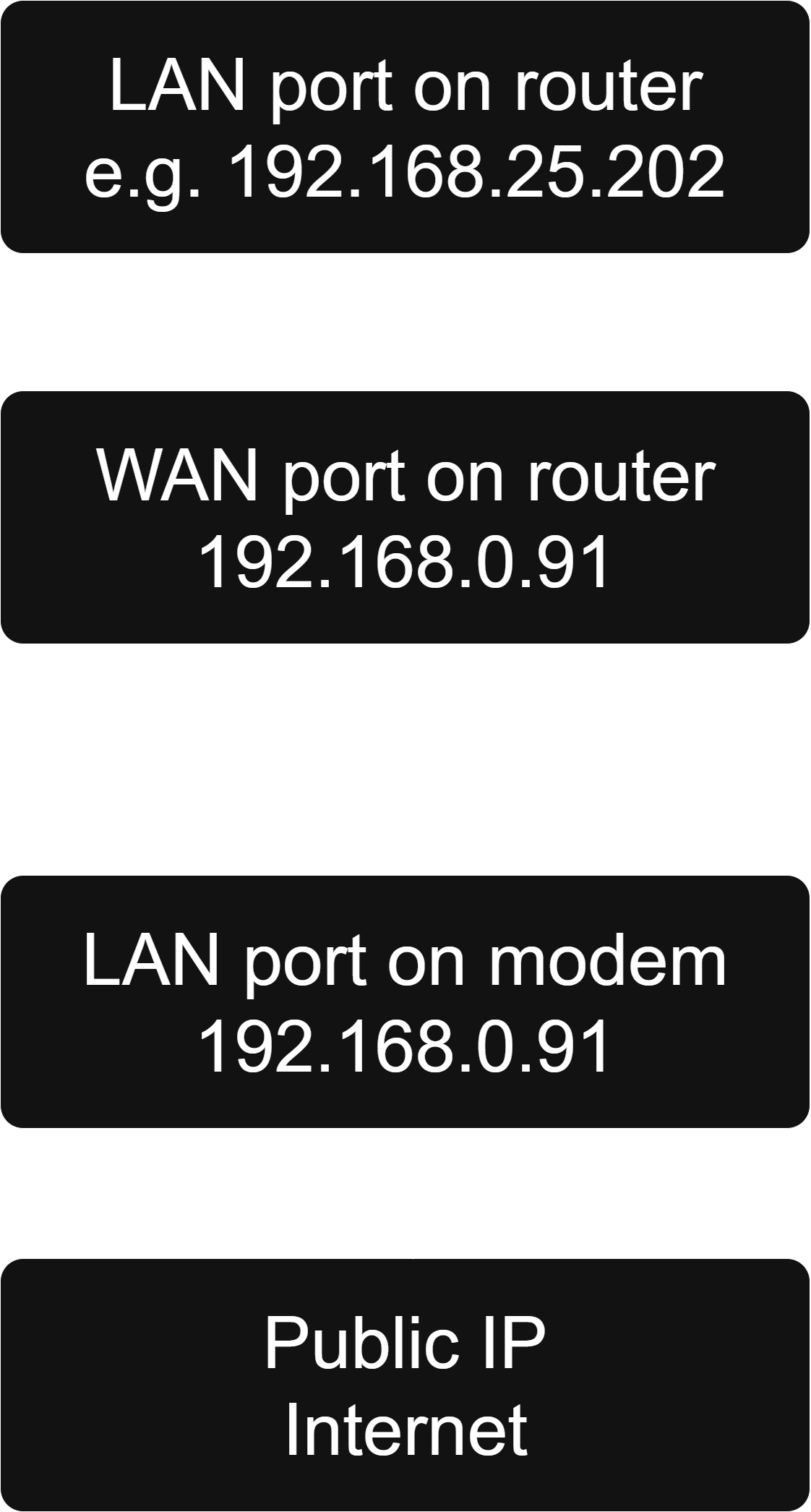
Turning off the router mode on the modem would actually give the WAN port on the router a public IP and disable the modem's routing capabilities. This was one part of my plan.
I had two LAN ports that were being used. They were connected to virtual machines, so there were no physical cables being used, but they were in use. Since the services running on those networks were being public exposed, isolating them from my main server network, 192.168.0.X, was key. This worked just fine, but again, for my Wazuh project, there wasn't an efficient way of it being able to view everything that I wanted it to access. I could connect multiple networks to it, but that didn't feel right. There was a smarter way to lay out my home network.
If I centralized everything on the router, I would have better control of segmenting networks, establish security rules with a firewall, and simplify network traffic with a single NAT. And not only could I centralize everything onto the router, I could centralize all of my LAN traffic onto a single port through VLANs (virtual LANs).
VLANs can be given a network and subnet range like real LANs, and are identified through a VLAN tag. VLANs are established on an actual LAN, in this case, I wanted to use my 192.168.168.X network as the main holder of the VLANs. I wanted three VLANs:
I wanted one VLAN that would be considered the main network in my house, used for guests on 192.168.10.X, VLAN 10. Devices on this network would be TVs, phones, or anything that should be isolated from the server.
The next VLAN would be for my internal services, 192.168.20.X, VLAN 20. Mainly the server would reside on this network, but I would also like my PC to be on it too.
The last VLAN would be for any exposed services, 192.168.30.X, VLAN 30. All VLANs would have a subnet mask of /24. This would be for my website and the minecraft server.
These VLANs categorized everything in my home network, and with the 192.168.168.X network being the holder of all of the VLANs, the Wazuh container could reside on the actual LAN and would have access to everything. All on one port!
With this setup, I disabled my old LAN ports since they were going to be no longer in use, and in case of expansion in the future, I can re-enable them. With my old setup with no VLANs, it made expansion much more limited.
So, using the layout before, this is what the network could look like:
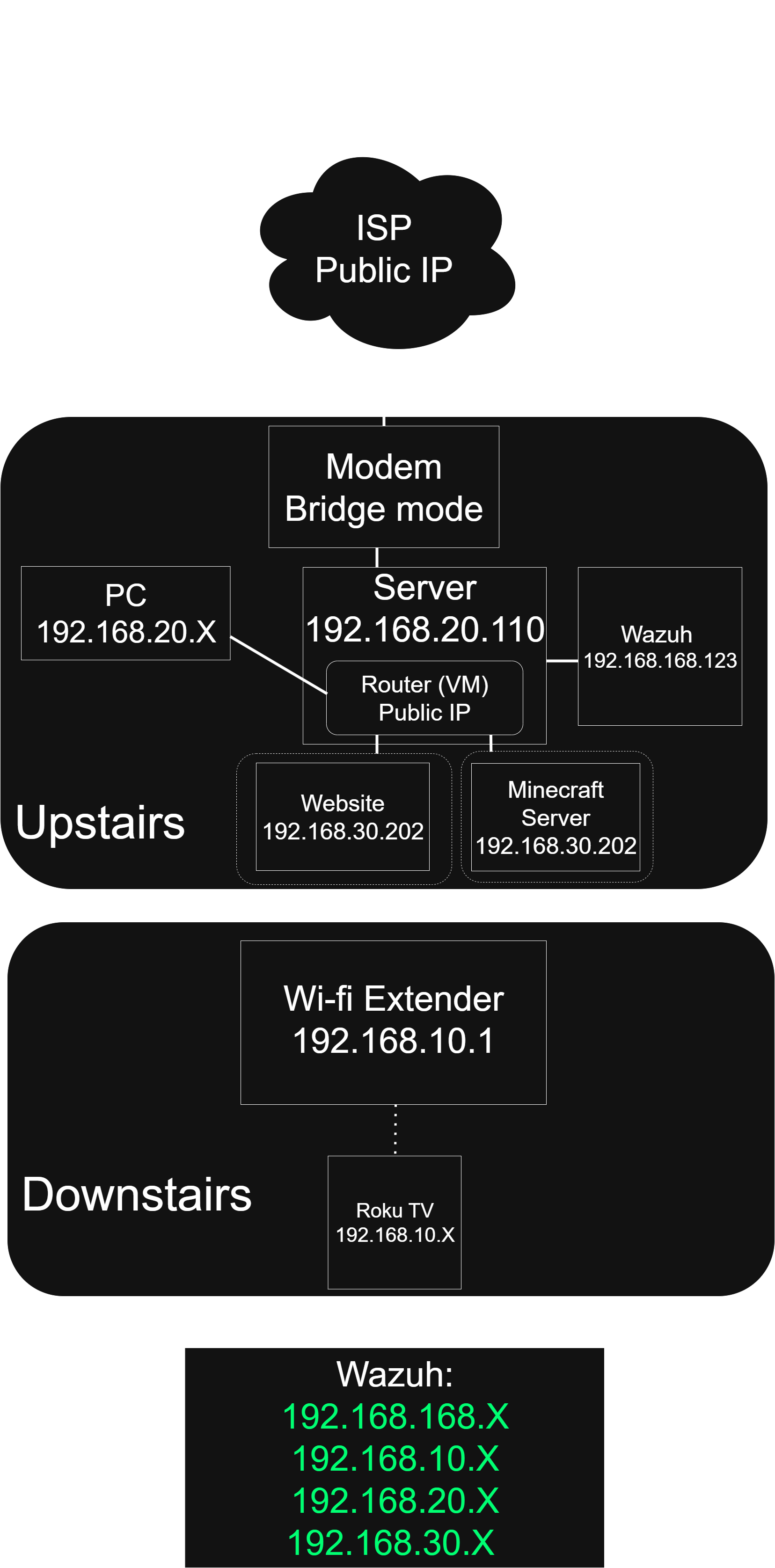
Looks promising! Although, with VLAN tagging, with the way things currently are, there would be no way for physical devices to identify what VLAN network they are on. For virtual machines, it's quite simple as there is an option to tell a machine what VLAN they are on.
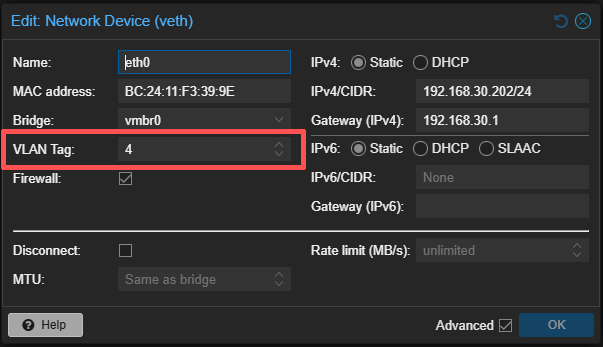
You cannot natively do this with a physical device. If I plugged my PC into the fourth LAN port on the 192.168.168.X network, it would have no idea what VLAN to connect to. If only there was a physical device that could manage VLANs and help with the expansion of LANs...
Queue the switch.
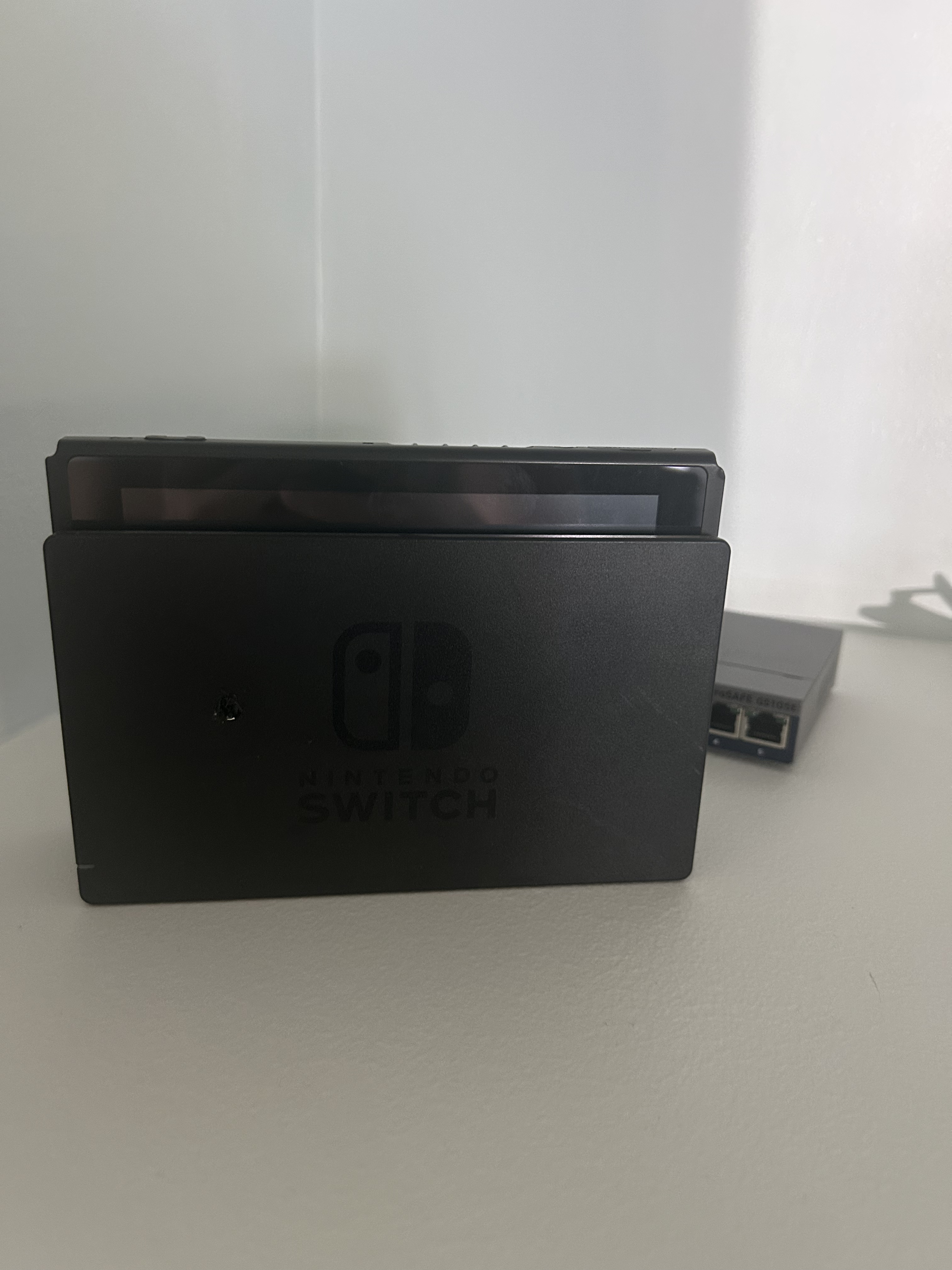
Wrong switch.
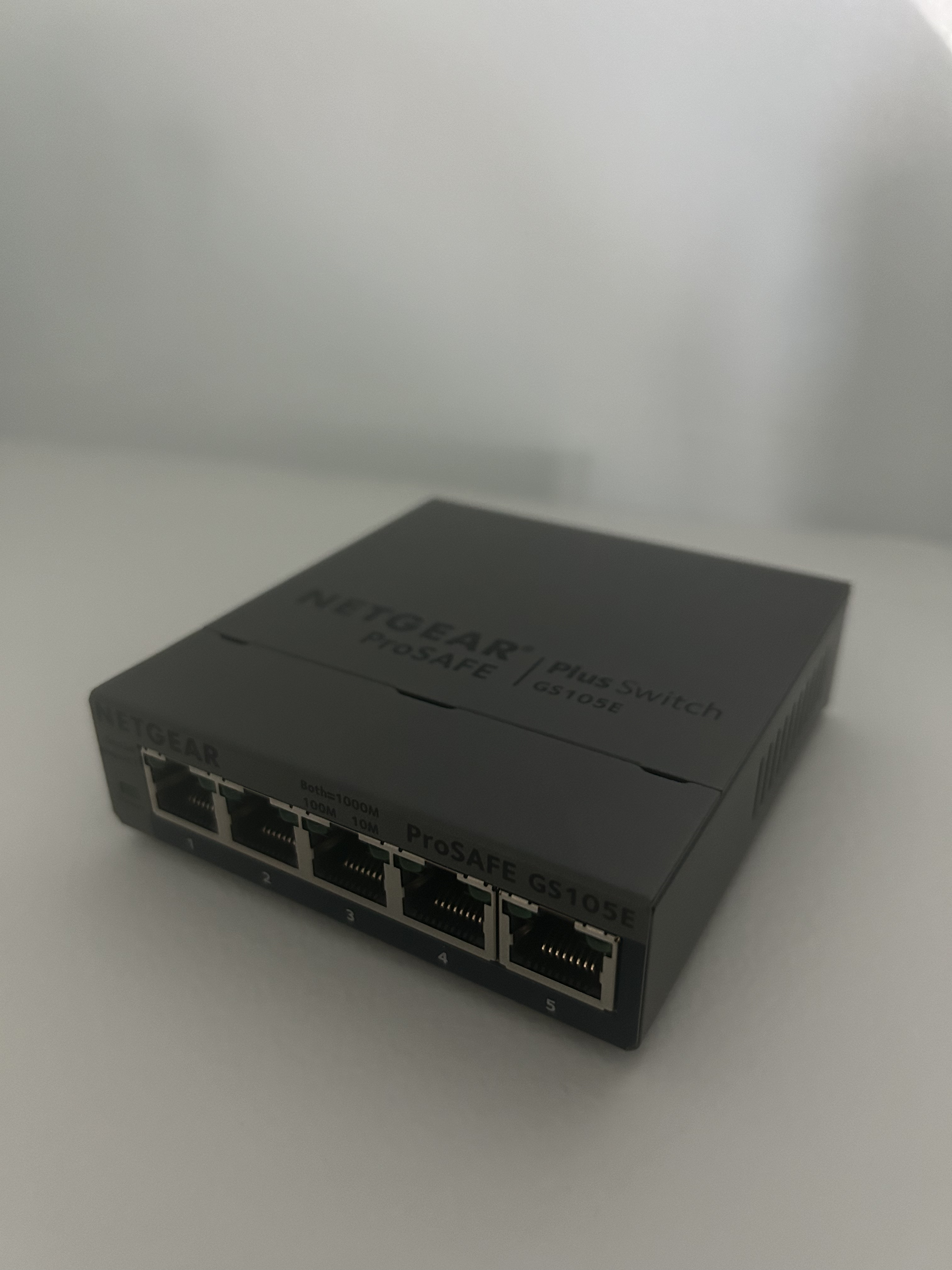
Yea, that thing.
A managed switch (the one I used for this project) maps VLAN/VLANs to ports on it. The switch plays a big role in assigning physical devices within the network the VLANs they need to be on.
Did you ask for a layout?
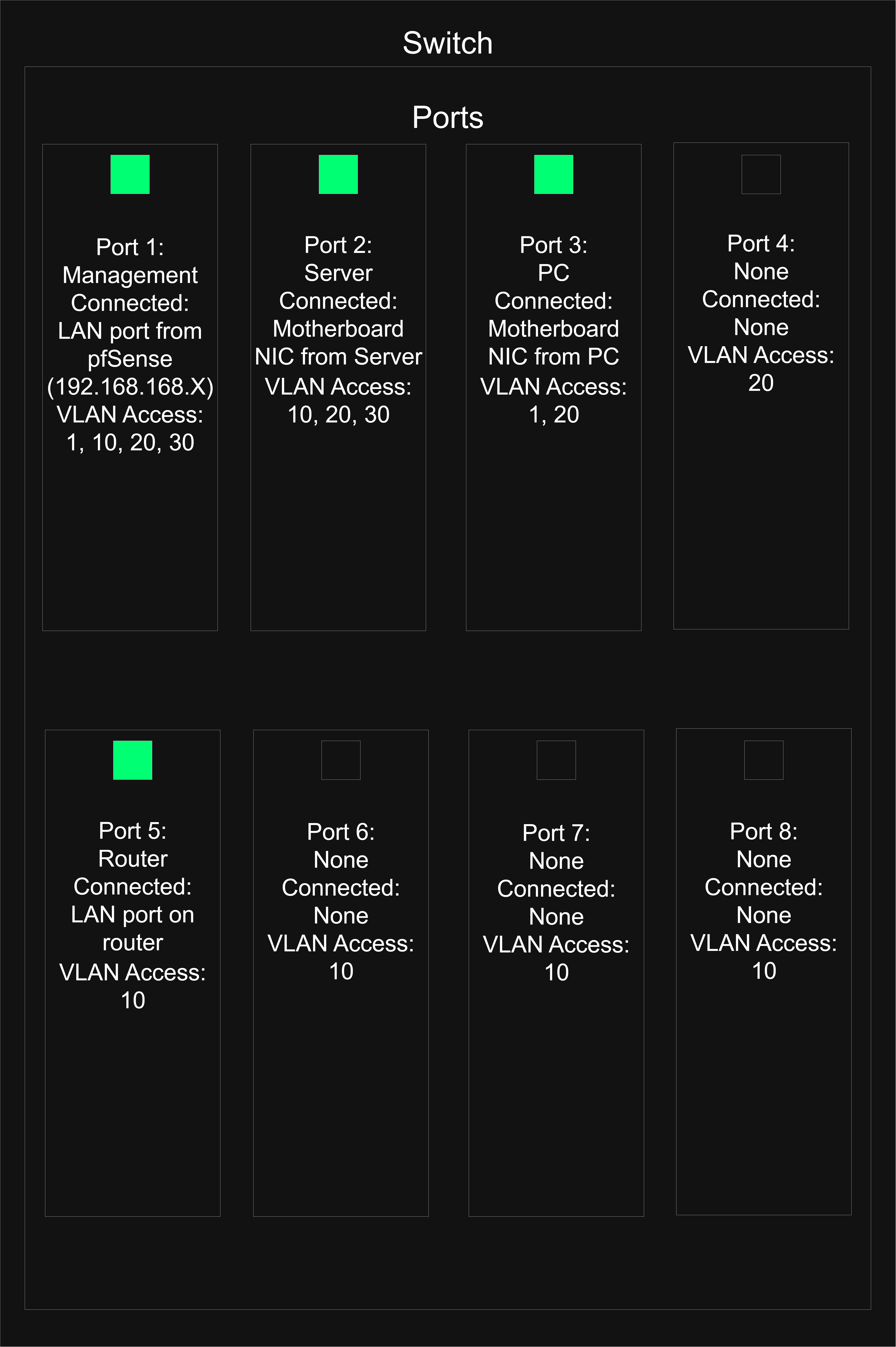
(Note: My switch is not physically laid out like this; it is presented like this for the sake of convenience).
A switch comes equipped with a default VLAN, typically on VLAN 1, in order for you configure the switch. The first port on my switch is the management switch, which has access to all of the VLANs on my network. This is known as a trunk port. Port 3, for my PC, also has access to the default VLAN in case I need to configure something without unplugging port one and plugging my PC into it. There are also Port and VLAN IDS (PVIDS) that assign the main VLAN a port is assigned to. For example, my server on port 2 has access to VLANs 10, 20, and 30, but it's PVID is asigned to VLAN 20, so it is primarily on the 192.168.20.X network. It still has access to VLANs 10 and 30, its just not assigned to those networks.
Note on port 5 of my switch there is another router I included in the setup. Due to the modem's routing capabilities being disabled while it is in bridge mode, this also includes it's Wi-fi capabilities. So, I had to introduce a separate router from my pfSense one that would send a Wi-fi signal on the 192.168.10.X network. It is a bit of shame, but it is a sacrifice I am willing to make.
Okay! Now that everything is logically separated, properly tagged, and on the right network, they should not be able to communicate with each other, right? If I were on my internal services VLAN and tried to ping something on the exposed services VLAN, the ping should fail since they are on different networks, riiight?
WRONG!
By default, VLANs within the same LAN are able to communicate with each other. Although I want the LAN to oversee everything going on within the VLANs, I do not want a VLAN to be able to see what another VLAN is doing, or at least restrict the access of certain VLANs. This is where the firewall comes into play with pfSense.
On the configuration page for pfSense, there is section under Firewall named Rules, where you can see all of your enabled interfaces and control what network traffic is allowed and blocked.
Here is a screenshot of the firewall rules on my VLAN 10 network:
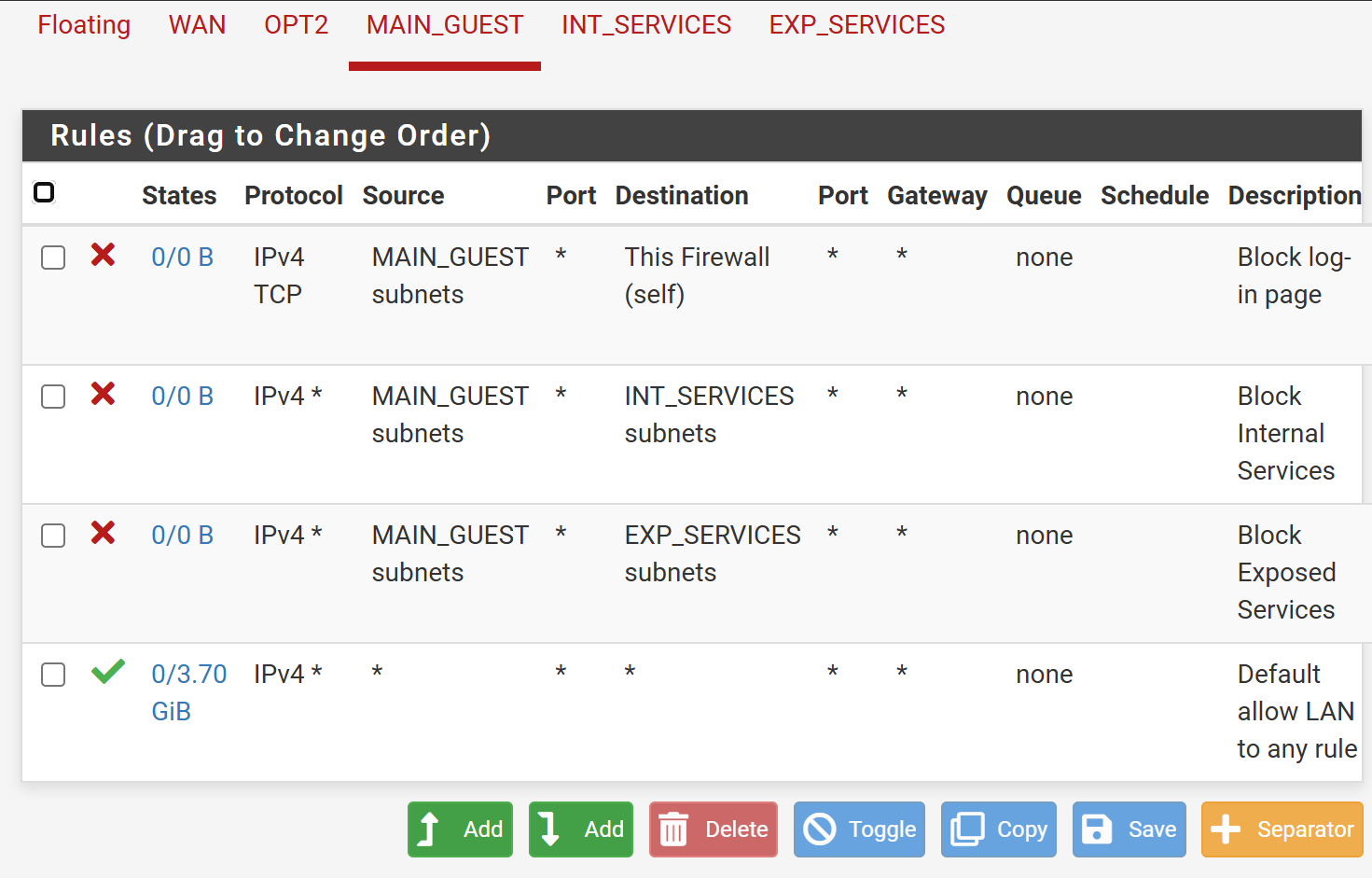
I know the first time I had labs in pfSense I had no idea what I was doing, so I am only going to explain the first firewall rule and let you off the hook.
The first firewall rule blocks the log-in page for the pfsense firewall on the VLAN 10 network. The main/guest network is supposed to get internet access, and that's basically it. It can't access the services running off of my server, and it can't access any exposed services. By default, you can access the pfSense firewall off of the first address assigned on network, in which for VLAN 10's case, would be 192.168.10.1. If someone were to know the credentials for the firewall, well, they could edit whatever their heart could desire. Not ideal.
So, the firewall rule tells anything that is on the main/guest subnet (the source) that attempts to access the firewall (the destination), prevent it from doing so (block). That's a basic overview, I know there are ports and protocols being mentioned, but you don't have to worry about that. Also note that the last rule present is essentially allowing anything in. This is how a firewall should be set up: set up what should be blocked first, and then if the traffic passes all of the block rules, then it's good.
Not all of my VLANs are set up like this. VLAN 20 for internal services can communicate with VLAN 10, but VLAN 10 cannot communicate with VLAN 20. Nobody can communicate with VLAN 30, and VLAN 30 cannot communicate with anybody. VLAN 30 cannot even communicate with devices within its own VLAN. Since the services are exposed, I want them to be isolated as possible.
Some of you may be questioning why I even bothered going through all of this. Does is really matter if people who were connected to the Wi-fi before access internal services? Not really. In an enterprise environment? That could be a huge flaw. Imagine walking into a bank, connecting to the guest wi-fi, and being able to access log-in screens for critical services. It's a terrible thought.
This was a good exercise for practical skills. All of the concepts explained above I learned about fair and square in school, but when I bought that networking switch, I looked at it as if it was completely foreign to me. Something as essential to modern networking such as access and trunk ports I completely forgot I could utilize since I never made practical application of it. I've done countless online labs about it and got a certification in networking, and that almost meant nothing. Theoretical and practical knowledge are two different things.
This was also a good exercise of trying to explain those concepts that I learned about. Unfortunately it is above my paygrade to be able to explain this to someone not in tech about what I have done in a few sentences, but I tried my hardest to present the full picture. Whenever I was making the transition from the modem's network to just the pfSense router and something wasn't working or down, I could not exactly explain to pap why his TV wasn't working. I knew what was going on, but there was no way I could put it into words for him to get it. There was just too much information I would have to explain for him to understand my motives. So, if pap is really curious, he could read this article. But he won't. He'll be watching TV.
In the grand scheme of things, this wasn't anything complicated. Explaining it was the difficult part, but if read anything of this, I thank you, and if you understood anything of it, that is incredible.
My next project is either going deeper into Wazuh or something programming related, so stay tuned.
Mmmmmm one more layout to send it off.
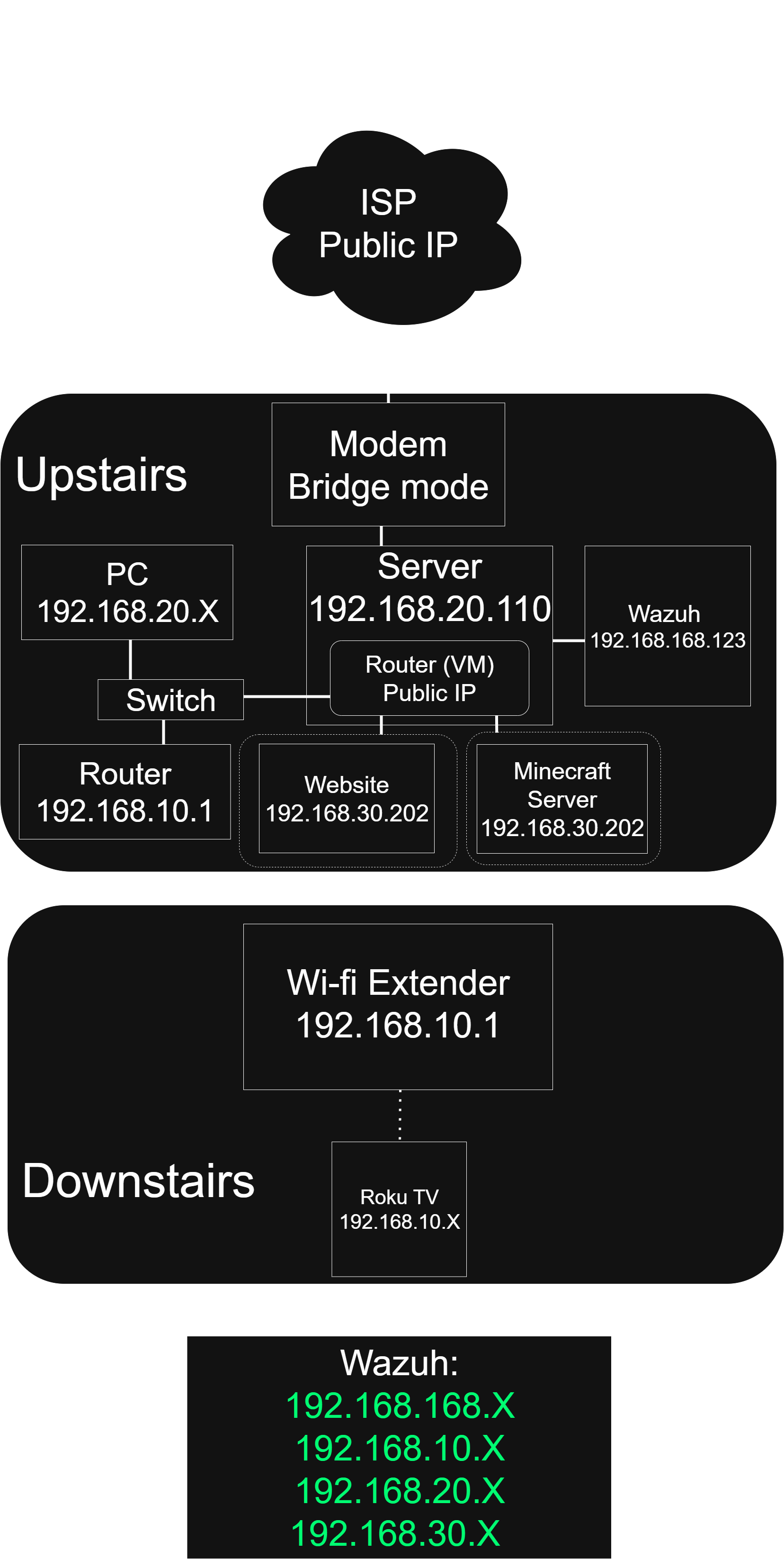
From P.